Customise node styling in Kedro-Viz
From Kedro-Viz version 12.2.0, you can customise the visual appearance of nodes in your pipeline flowchart. You can apply custom colors, styling, and theme-specific appearances to individual nodes to help distinguish different types of operations, highlight important components, or create visual groupings in your pipeline.
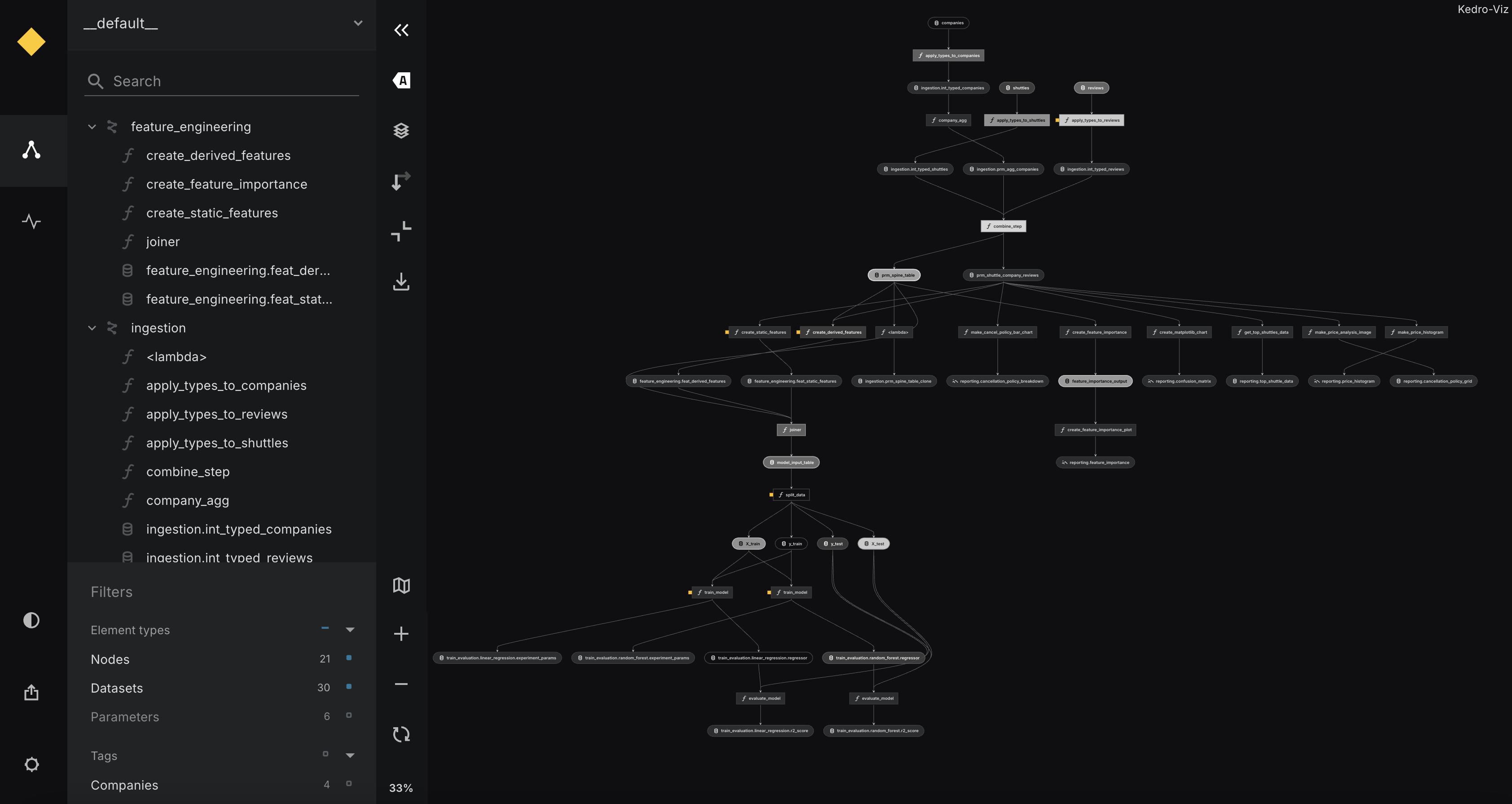
Overview
Node styling enables you to:
- Apply custom colors to node backgrounds, borders, and text
- Set theme-specific styles that automatically switch between light and dark modes
- Highlight specific nodes with custom styling to draw attention
- Create visual categories by styling nodes according to their function or importance
- Improve readability of complex pipelines through strategic use of color and styling
Setting up node styles
To customise node styling, create a styles.json file in your project's .viz directory:
your-kedro-project/
├── .viz/
│   └── styles.json    # Node styling configuration
├── conf/
├── data/
└── src/
Info
The .viz directory is automatically created when you run kedro run. If it doesn't exist, create it manually in your project root.
Basic styling configuration
The styles.json file uses a JSON structure where each node name maps to its styling properties:
{
  "node_name": {
    "fill": "#ff6b6b",
    "stroke": "#d63447",
    "color": "#ffffff"
  }
}
Styling properties
Each node can be customised using the following CSS properties:
| Property | Description | CSS Reference |
|---|---|---|
fill |
Sets the background color of the node | CSS background-color |
stroke |
Sets the border color around the node | CSS border-color |
color |
Sets the text color for the node label | CSS color |
opacity |
Sets the transparency level (0.0 to 1.0) | CSS opacity |
Additional CSS Properties
For more advanced styling options and detailed information about CSS color values, follow the MDN CSS Reference for comprehensive documentation on color formats and additional styling properties.
Example: Basic node styling
{
  "data_processing.preprocessing_node": {
    "fill": "#4ecdc4",
    "stroke": "#26d0ce",
    "color": "#ffffff"
  },
  "data_science.train_model": {
    "fill": "#45b7d1",
    "stroke": "#3a9bc1",
    "color": "#ffffff"
  },
  "reporting.create_visualization": {
    "fill": "#f9ca24",
    "stroke": "#f0932b",
    "color": "#2f3542"
  }
}
Tip
You can use any valid CSS color format: hex codes (#ff6b6b), RGB values (rgb(255, 107, 107)), HSL values (hsl(0, 100%, 71%)), or named colors (red).
Theme-specific styling
Kedro-Viz supports both light and dark themes. You can define different styles for each theme using the themes property:
{
  "data_processing.preprocessing_node": {
    "fill": "#4ecdc4",
    "themes": {
      "light": {
        "fill": "#4ecdc4",
        "stroke": "#26d0ce",
        "color": "#ffffff"
      },
      "dark": {
        "fill": "#2d5a87",
        "stroke": "#1e3f5f",
        "color": "#e0e6ed"
      }
    }
  }
}
How theme styling works
- Root-level properties are applied first as default styles
- Theme-specific properties override defaults when that theme is active
- Theme switching automatically updates node appearance in real-time
Example: Complete theme-aware configuration
{
  "data_processing.clean_data": {
    "fill": "#4ecdc4",
    "themes": {
      "light": {
        "fill": "#e8f5e8",
        "stroke": "#4caf50",
        "color": "#2e7d32"
      },
      "dark": {
        "fill": "#1b5e20",
        "stroke": "#4caf50",
        "color": "#c8e6c9"
      }
    }
  },
  "model_training.train_classifier": {
    "fill": "#4ecdc4",
    "themes": {
      "light": {
        "fill": "#e3f2fd",
        "stroke": "#2196f3",
        "color": "#0d47a1"
      },
      "dark": {
        "fill": "#0d47a1",
        "stroke": "#2196f3",
        "color": "#bbdefb"
      }
    }
  }
}
Advanced styling patterns
Category-based styling
Group related nodes by function using consistent color schemes:
{
  "data_processing.load_data": {
    "fill": "#e8f5e8",
    "stroke": "#4caf50",
    "color": "#2e7d32"
  },
  "data_processing.clean_data": {
    "fill": "#e8f5e8",
    "stroke": "#4caf50",
    "color": "#2e7d32"
  },
  "model_training.feature_engineering": {
    "fill": "#e3f2fd",
    "stroke": "#2196f3",
    "color": "#0d47a1"
  },
  "model_training.train_model": {
    "fill": "#e3f2fd",
    "stroke": "#2196f3",
    "color": "#0d47a1"
  },
  "reporting.generate_report": {
    "fill": "#fff3e0",
    "stroke": "#ff9800",
    "color": "#e65100"
  }
}
Priority-based styling
Use colors to indicate node importance:
{
  "critical_data_validation": {
    "fill": "#ffebee",
    "stroke": "#f44336",
    "color": "#c62828"
  },
  "experimental_feature": {
    "fill": "#f3e5f5",
    "stroke": "#9c27b0",
    "color": "#6a1b9a",
    "opacity": "0.8"
  },
  "deprecated_node": {
    "fill": "#fafafa",
    "stroke": "#9e9e9e",
    "color": "#616161",
    "opacity": "0.6"
  }
}
Finding node names
To style a specific node, you need its exact name as it appears in your Kedro pipeline. You can find node names by:
- In Kedro-Viz: Hover over nodes to see their names in tooltip
- In your code: Check your pipeline definitions in Python files
- Using Kedro CLI: Run
kedro catalog describe-datasetsto see dataset names - In the node list: Use the expandable node list panel in Kedro-Viz
Tip
Node names in styles.json must match the names shown in Kedro-Viz. They are case-sensitive and should include any namespace prefixes (e.g., data_processing.clean_data).
Applying your styles
- Create or edit
.viz/styles.jsonwith your styling configuration - Restart Kedro-Viz by running
kedro viz runagain - Refresh your browser to see the updated node styling
- Switch themes using the theme toggle to verify theme-specific styles
Info
Changes to styles.json require restarting Kedro-Viz to take effect. The styles are loaded when the server starts.
Troubleshooting
Styles not appearing
- Check file location: Ensure
styles.jsonis in the.vizdirectory at your project root - Verify JSON syntax: Use a JSON validator to check for syntax errors
- Match node names: Node names are case-sensitive and must match
- Restart Kedro-Viz: Changes require a server restart to take effect
Invalid styling properties
- Valid CSS colors: Use proper color formats (
#ff0000,rgb(255,0,0), orred) - Check property names: Ensure you're using supported CSS property names
Theme switching issues
- Define both themes: Include both
lightanddarktheme objects - Test both modes: Switch themes in Kedro-Viz to verify both styles work