Use a Jupyter notebook for Kedro project experiments
This page explains how to use a Jupyter notebook to explore elements of a Kedro project. It shows how to use kedro jupyter notebook to set up a notebook that has access to the catalog, context, pipelines and session variables of the Kedro project so you can query them.
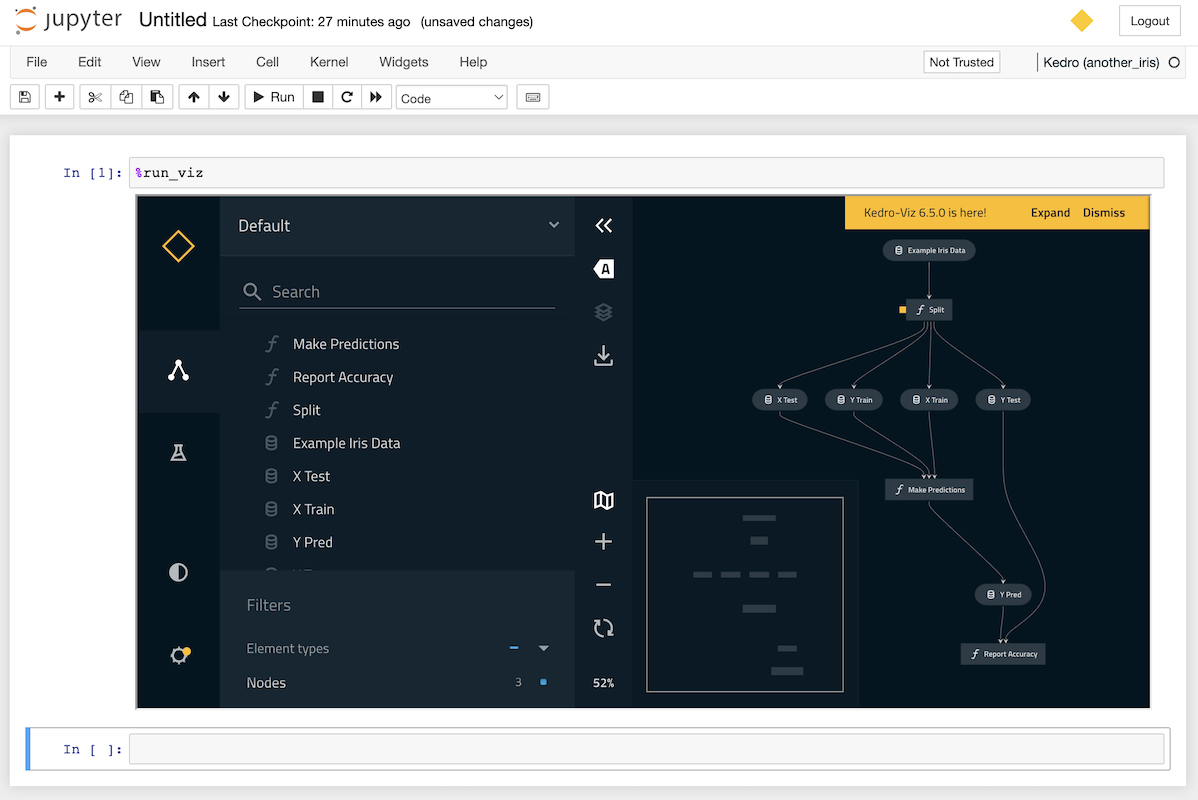
This page also explains how to use line magic to display a Kedro-Viz visualisation of your pipeline directly in your notebook.
Iris dataset example
Create a sample Kedro project with the pandas-iris starter as we showed in the get started documentation:
kedro new --starter=pandas-iris
We will assume you call the project iris, but you can call it whatever you choose.
Navigate to the project directory (cd iris) and issue the following command in the terminal to launch Jupyter:
kedro jupyter notebook
You’ll be asked if you want to opt into usage analytics on the first run of your new project. Once you’ve answered the question with y or n, your browser window will open with a Jupyter page that lists the folders in your project:
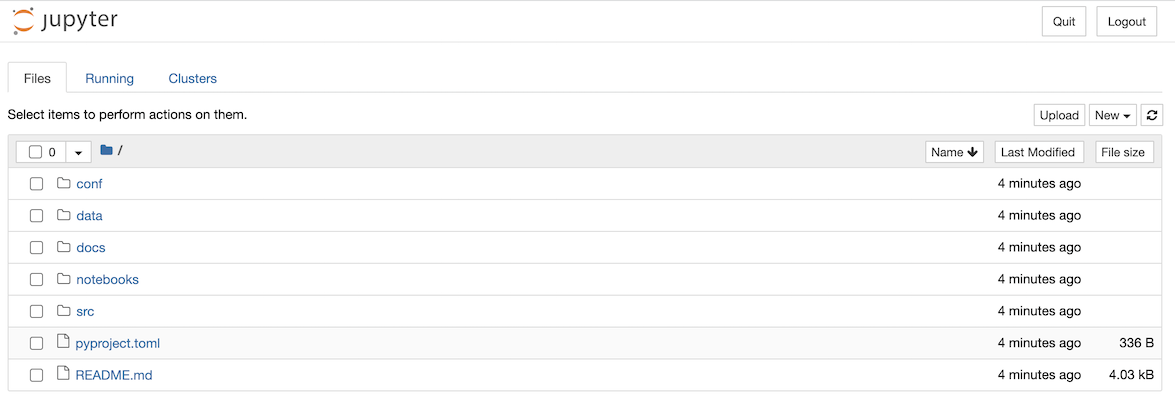
You can now create a new Jupyter notebook using the New dropdown and selecting the Kedro (iris) kernel:

This opens a new browser tab to display the empty notebook:

We recommend that you save your notebook in the notebooks folder of your Kedro project.
What does kedro jupyter notebook do?
The kedro jupyter notebook command launches a notebook with a kernel that is slightly customised but almost identical to the default IPython kernel.
This custom kernel automatically makes the following Kedro variables available:
catalog(typeDataCatalog): Data Catalog instance that contains all defined datasets; this is a shortcut forcontext.catalogcontext(typeKedroContext): Kedro project context that provides access to Kedro’s library componentspipelines(typeDict[str, Pipeline]): Pipelines defined in your pipeline registrysession(typeKedroSession): Kedro session that orchestrates a pipeline run
Note
If the Kedro variables are not available within your Jupyter notebook, you could have a malformed configuration file or missing dependencies. The full error message is shown on the terminal used to launch kedro jupyter notebook.
How to explore a Kedro project in a notebook
Here are some examples of how to work with the Kedro variables. To explore the full range of attributes and methods available, see the relevant API documentation or use the Python dir function, for example dir(catalog).
%run_viz line magic
Note
If you have not yet installed Kedro-Viz for the project, run pip install kedro-viz in your terminal from within the project directory.
You can display an interactive visualisation of your pipeline directly in your notebook using the run-viz line magic from within a cell:
%run_viz
catalog
catalog can be used to explore your project’s Data Catalog using methods such as catalog.list, catalog.load and catalog.save.
For example, add the following to a cell in your notebook to run catalog.list:
catalog.list()
When you run the cell:
['example_iris_data',
 'parameters',
 'params:example_test_data_ratio',
 'params:example_num_train_iter',
 'params:example_learning_rate'
]
Next try the following for catalog.load:
catalog.load("example_iris_data")
The output:
INFO     Loading data from 'example_iris_data' (CSVDataSet)...

     sepal_length  sepal_width  petal_length  petal_width    species
0             5.1          3.5           1.4          0.2     setosa
1             4.9          3.0           1.4          0.2     setosa
2             4.7          3.2           1.3          0.2     setosa
3             4.6          3.1           1.5          0.2     setosa
4             5.0          3.6           1.4          0.2     setosa
..            ...          ...           ...          ...        ...
145           6.7          3.0           5.2          2.3  virginica
146           6.3          2.5           5.0          1.9  virginica
147           6.5          3.0           5.2          2.0  virginica
148           6.2          3.4           5.4          2.3  virginica
149           5.9          3.0           5.1          1.8  virginica
Now try the following:
catalog.load("parameters")
You should see this:
INFO     Loading data from 'parameters' (MemoryDataset)...

{'example_test_data_ratio': 0.2,
 'example_num_train_iter': 10000,
 'example_learning_rate': 0.01}
Note
If you enable versioning you can load a particular version of a dataset, e.g. catalog.load("example_train_x", version="2021-12-13T15.08.09.255Z").
context
context enables you to access Kedro’s library components and project metadata. For example, if you add the following to a cell and run it:
context.project_path
You should see output like this, according to your username and path:
PosixPath('/Users/username/kedro_projects/iris')
You can find out more about the context in the API documentation.
pipelines
pipelines is a dictionary containing your project’s registered pipelines:
pipelines
The output will be a listing as follows:
{'__default__': Pipeline([
Node(split_data, ['example_iris_data', 'parameters'], ['X_train', 'X_test', 'y_train', 'y_test'], 'split'),
Node(make_predictions, ['X_train', 'X_test', 'y_train'], 'y_pred', 'make_predictions'),
Node(report_accuracy, ['y_pred', 'y_test'], None, 'report_accuracy')
])}
You can use this to explore your pipelines and the nodes they contain:
pipelines["__default__"].all_outputs()
Should give the output:
{'y_pred', 'X_test', 'y_train', 'X_train', 'y_test'}
session
session.run allows you to run a pipeline. With no arguments, this will run your __default__ project pipeline sequentially, much as a call to kedro run from the terminal:
session.run()
You can also specify the following optional arguments for session.run:
Argument name |
Accepted types |
Description |
|---|---|---|
|
|
Construct the pipeline using nodes which have this tag attached. A node is included in the resulting pipeline if it contains any of those tags |
|
|
An instance of Kedro AbstractRunner. Can be an instance of a ParallelRunner |
|
|
Run nodes with specified names |
|
|
A list of node names which should be used as a starting point |
|
|
A list of node names which should be used as an end point |
|
|
A list of dataset names which should be used as a starting point |
|
|
A list of dataset names which should be used as an end point |
|
|
A mapping of a dataset name to a specific dataset version (timestamp) for loading. Applies to versioned datasets |
|
| pipeline_name | str | Name of the modular pipeline to run. Must be one of those returned by the register_pipelines function in src/<package_name>/pipeline_registry.py |
You can execute one successful run per session, as there’s a one-to-one mapping between a session and a run. If you wish to do more than one run, you’ll have to run %reload_kedro line magic to get a new session.
%reload_kedro line magic
You can use %reload_kedro line magic within your Jupyter notebook to reload the Kedro variables (for example, if you need to update catalog following changes to your Data Catalog).
You don’t need to restart the kernel for the catalog, context, pipelines and session variables.
%reload_kedro accepts optional keyword arguments env and params. For example, to use configuration environment prod:
%reload_kedro --env=prod
For more details, run %reload_kedro?.
How to use tags to convert functions from Jupyter notebooks into Kedro nodes
You can use the notebook to write experimental code for your Kedro project. If you later want to convert functions you’ve written to Kedro nodes, you can do this using node tags to export them to a Python file. Say you have the following code in your notebook:
def some_action():
    print("This function came from `notebooks/my_notebook.ipynb`")
Enable tags toolbar:
Viewmenu ->Cell Toolbar->Tags
Add the
nodetag to the cell containing your function
Save your Jupyter notebook to
notebooks/my_notebook.ipynbFrom your terminal, run
kedro jupyter convert notebooks/my_notebook.ipynbfrom the Kedro project directory. The output is a Python filesrc/<package_name>/nodes/my_notebook.pycontaining thesome_actionfunction definitionThe
some_actionfunction can now be used in your Kedro pipelines
Useful to know (for advanced users)
Each Kedro project has its own Jupyter kernel so you can switch between Kedro projects from a single Jupyter instance by selecting the appropriate kernel.
If a Jupyter kernel with the name kedro_<package_name> already exists then it is replaced. This ensures that the kernel always points to the correct Python executable. For example, if you change conda environment in a Kedro project then you should re-run kedro jupyter notebook to replace the kernel specification with one that points to the new environment.
You can use the jupyter kernelspec set of commands to manage your Jupyter kernels. For example, to remove a kernel, run jupyter kernelspec remove <kernel_name>.
Managed services
If you work within a managed Jupyter service such as a Databricks notebook you may be unable to execute kedro jupyter notebook. You can explicitly load the Kedro IPython extension with the %load_ext line magic:
In [1]: %load_ext kedro.ipython
If you launch your Jupyter instance from outside your Kedro project, you will need to run a second line magic to set the project path so that Kedro can load the catalog, context, pipelines and session variables:
In [2]: %reload_kedro <project_root>
The Kedro IPython extension remembers the project path so that future calls to %reload_kedro do not need to specify it:
In [1]: %load_ext kedro.ipython
In [2]: %reload_kedro <project_root>
In [3]: %reload_kedro
IPython, JupyterLab and other Jupyter clients
You can also connect an IPython shell to a Kedro project kernel as follows:
kedro ipython
The command launches an IPython shell with the extension already loaded and is the same command as ipython --ext kedro.ipython. You first saw this in action in the spaceflights tutorial.
Similarly, the following creates a custom Jupyter kernel that automatically loads the extension and launches JupyterLab with this kernel selected:
kedro jupyter lab
You can use any other Jupyter client to connect to a Kedro project kernel such as the Qt Console, which can be launched using the kedro_iris kernel as follows:
jupyter qtconsole --kernel=kedro_iris
This will automatically load the Kedro IPython in a console that supports graphical features such as embedded figures:

Find out more
We recommend the following: